
HOW TO JOIN A LIVE SESSION
To join a Live Session, students will connect through the professor’s Zoom Meeting Link found in the following 3 (three) locations:
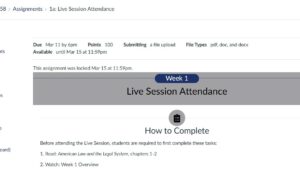
1 . Within your Canvas Course Assignment
Navigate to the Live Session Assignment Page
Scroll to the very bottom of the page
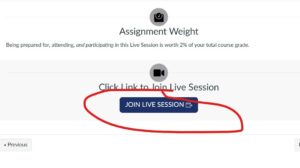
Click Join Live Session
Remain on mute until the professor indicates otherwise
2. Via the Student Portal
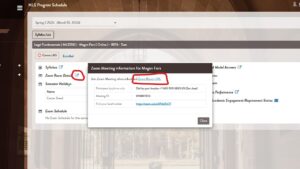
- Navigate to the Student Portal
- Log in with your student credentials
- Click on your course in the Semester Dashboard
- Click the blue icon next to ‘Zoom Room Details
- Click ‘Zoom Room URL’
3. Via Simple Syllabus in Canvas
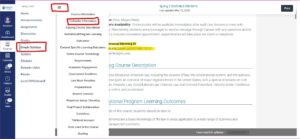
- In Canvas, navigate to Simple Syllabus
- Use the interactive menu options by clicking the three horizontal menu bars
- Scroll to Instructor Information
- Copy and paste the link below ‘Zoom Personal Meeting ID’ into a Chrome Browser
BEST PRACTICES FOR JOINING A LIVE SESSION
Students should join Live Sessions:
- With a live video feed (by camera) and live audio (microphone) from their devices
- From a location free of visible or audible distractions, including, but not limited to, other people, pets, food, ambient noise, and driving a car.
The instructor will mute any students’ audio and/or video that distracts them from the virtual classroom experience. Students shall remain visible and audible during the entire class session.
WHEN A STUDENT ARRIVES LATE, DEPARTS EARLY, OR IS OFF-CAMERA DURING LIVE SESSIONS
During a Live Session, a student will be counted as “absent” for the duration of the time the student:
- is not visible/accessible by video and/or microphone,
- is not present due to a late arrival or early departure, or
- is not present due to the student exhibiting a pattern of unpreparedness and being asked to leave class by the instructor.
Driving while attending a live session could be considered unprepared for class and result in being counted as ‘absent.’
LIVE SESSION ATTENDANCE
In order to get the most out of their education and have increased interaction with their professors and classmates, MLS students are strongly encouraged to attend every Live Session.
With that being said, TLS understands that sickness, family emergency, or last-minute work obligations will occasionally prevent a student from attending a Live Session.
HOW TO MAKE UP A MISSED LIVE SESSION
To receive assignment credit for a missed Live Session, the student must:
- Watch the entire recording of the Live Session,
- Prepare a detailed outline of the Live Session, and
- Respond to any other requirements in Canvas.
The make-up work will be submitted to the Live Session Attendance assignment in Canvas, and it is due no later than 11:59 pm Pacific Standard/Daylight Time on the Saturday of the Week in which the Live Session was missed.
WHY DOES MY LIVE SESSION MAKE-UP ASSIGNMENT SHOW AS LATE IN CANVAS?
When completing a Live Session Make-Up, please note that your assignment will show as late in Canvas as it is being submitted after the Live Session; the instructor will manually remove the late penalty when grading the assignment.